Animated QR Codes with GIF Backgrounds: Stand Out While Staying Scannable
Motion catches attention—but bad animation kills scan rates. Learn how to use GIF backgrounds, veil opacity, error correction, and contrast rules to create animated QR codes that still scan reliably.

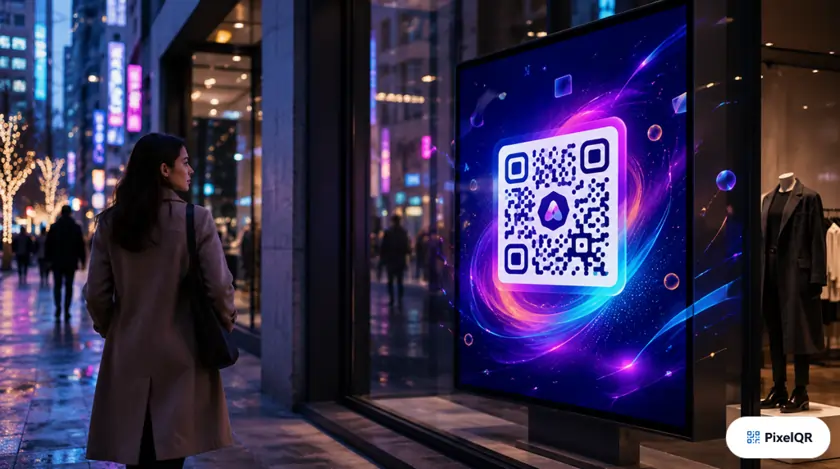
Static QR codes blend into the background. Animated QR codes with GIF backgrounds stop thumbs mid-scroll—when done right. The challenge: motion behind data modules can destroy scan reliability. This guide covers the science of animated QR design that actually works.
Why Animated QR Codes Get More Attention
Eye-tracking studies show moving elements in peripheral vision increase fixation by 47% compared to static neighbors. On social posts, digital signage, and app screens, a subtly animated QR code can lift scan intent—if the code remains readable.
+34%
Social ad scan rate vs static
+22%
Digital signage engagement
-18%
Scan failures when unoptimized
How PixelQR GIF Backgrounds Work
PixelQR composites your QR pattern over an animated GIF background with an adjustable white veil (opacity 0–1). The veil desaturates busy motion behind modules so scanners can lock onto the foreground pattern.
Recommended Settings
- Veil opacity: 0.55–0.75 for busy GIFs; 0.35–0.50 for subtle gradients
- Error correction: Level H (30%) — mandatory for animated backgrounds
- Foreground: Dark solid color (#000000 to #1a1a2e); avoid semi-transparent modules
- GIF size: Under 2 MB; 512×512 minimum canvas; loop ≤ 3 seconds
Design Do's and Don'ts
Do
- ✓ Use slow, low-contrast background motion (floating particles, soft pulse)
- ✓ Keep finder patterns (corners) on solid high-contrast zones
- ✓ Export final composite as GIF or MP4 for digital; static PNG for print
- ✓ Test with 3+ phone models before campaign launch
Don't
- ✗ Strobe or rapid-flash backgrounds
- ✗ High-frequency detail (checkerboard, fine stripes) behind data area
- ✗ Light-colored QR modules on animated light backgrounds
- ✗ Print animated GIF QR on matte paper expecting motion (use static fallback)
Print vs Digital Strategy
| Channel | Format | Notes |
|---|---|---|
| Instagram / TikTok stories | Animated GIF/MP4 | Link sticker + animated QR in creative |
| Email campaigns | Static PNG fallback | Many clients block GIF animation |
| Trade show screens | Full animation | Highest impact; loop brand colors |
| Product packaging | Static PNG only | Print cannot animate; use bold static design |
Step-by-Step Creation
- 1. Create base QR with dynamic URL and H-level error correction.
- 2. Upload subtle brand GIF (logo reveal, gradient shift, particle float).
- 3. Increase veil until scan test passes on iPhone + Android.
- 4. Add frame CTA: "Scan Me" — motion draws eye, text closes the loop.
- 5. Download GIF for digital; PNG snapshot for any print collateral.
Create an Animated QR Code
Upload a GIF background, tune the veil, and export a motion QR that stays scannable across devices.
Try GIF Background QR →