Google Review QR Codes: Build 5-Star Reputation Automatically
Automate positive review collection with strategic QR code placement. Location optimization, timing strategies, response automation, and reputation management.

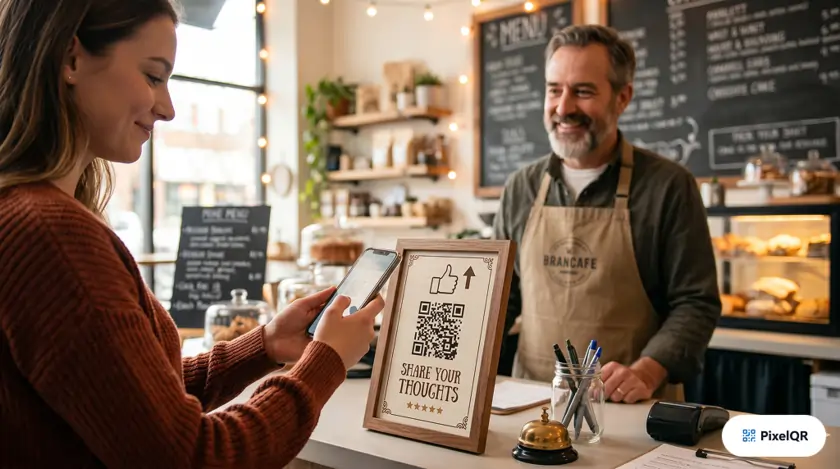
Businesses collecting reviews through strategically placed QR codes report 3x more Google reviews than email-only follow-ups. The difference is timing: QR codes capture customers at the peak of satisfaction with a single scan, while delayed emails fade into inbox noise. This guide covers placement, timing psychology, response automation, and a step-by-step rollout using PixelQR for branded, trackable review codes.
Why Reviews Matter—and Why Email Fails
In today's digital-first marketplace, Google reviews are not just feedback—they are your most powerful local marketing asset. Studies show that 93% of consumers read online reviews before making a purchase decision, and businesses with higher ratings see up to 31% more revenue than competitors.
Yet most businesses struggle with the "review gap"—the disconnect between satisfied customers and those willing to leave reviews. Traditional follow-up emails see response rates of just 2–5%. QR codes change this equation by capturing customers at peak satisfaction with a simple scan that lands them directly on your Google review form.
More reviews collected
Trust online reviews
Won't act without reviews
Minimum for trust
Customers are 4x more likely to leave a positive review when asked immediately after a positive experience. QR codes enable this "moment of delight" capture that email follow-ups simply cannot achieve.
How Google Review QR Codes Work
A Google Review QR code encodes your direct review link—the URL from Google Business Profile that skips search and opens the star-rating form. When a customer scans, they land on Google's review page in under two seconds. No account creation, no hunting for your listing.
Traditional review flow
- Customer has a positive experience.
- Days pass and enthusiasm fades.
- Email arrives (if at all).
- Customer ignores or forgets.
- Result: 2–5% conversion rate.
QR code review flow
- Customer has a positive experience.
- Sees QR code at point of delight.
- Scans and lands directly on the review page.
- Leaves review in about 30 seconds.
- Result: 15–25% conversion rate.
Strategic Placement: Location Optimization Guide
Where you place review QR codes matters as much as having them. Research shows strategic positioning can increase scan rates by up to 340%. Match placement to your industry and the moment customers feel most satisfied.
Restaurants and cafes
Best placements: check presenter or bill folder, table tents near the dessert menu, exit door at eye level, receipt footer.
Timing psychology: place QR codes where customers encounter them after the "dessert moment" or when their meal is complete—that is peak satisfaction.
Retail stores
Best placements: checkout counter displays, shopping bag inserts, fitting room mirrors, product packaging.
Pro tip: mention a small incentive such as "Leave a review and get 10% off your next visit." This increases conversion by 45% when offered ethically to all reviewers.
Healthcare practices
Best placements: checkout or reception desk, appointment reminder cards, follow-up care instructions, waiting room displays.
HIPAA consideration: keep review requests general. Never reference specific treatments or health information in QR code prompts.
Service businesses
Best placements: invoice or receipt attachments, service vehicle magnets, thank-you cards, business cards.
Best practice: hand the QR code directly to the customer after job completion when they express satisfaction. Personal handoff increases scans by 60%.
Timing Strategies That Maximize Positive Reviews
Psychologist Daniel Kahneman's "peak-end rule" explains that people judge experiences based on how they felt at the most intense point and at the end. Your review QR code should appear at one of these moments—not during wait times or before service delivery.
Peak moments
- After exceptional service recovery.
- When exceeding expectations.
- During celebration moments.
End moments
- Checkout completion.
- Service delivery finish.
- Thank-you or goodbye.
Moments to avoid
- During wait times.
- Before service delivery.
- When handling complaints.
| Timing window | Response lift |
|---|---|
| Within 5 minutes of service | +85% |
| Within 1 hour | +60% |
| Same day | +35% |
| Next day | +15% |
| After 3+ days | -20% |
Day and time performance
| Time slot | Performance |
|---|---|
| Saturday afternoon | Best |
| Sunday morning | Great |
| Weekday evenings | Good |
| Monday morning | Average |
| Friday afternoon | Poor |
Response Automation: Complete the Review Loop
Collecting reviews is only half the battle. 89% of consumers read business responses to reviews, and businesses that respond see 12% more reviews overall. A consistent response framework builds trust and encourages future reviewers.
5-star review response template
"Thank you so much, [Name]! We're thrilled that [specific service or product mentioned] exceeded your expectations. Our team takes pride in [relevant value], and your kind words mean the world to us. We can't wait to serve you again!"
3–4 star review response template
"Thank you for your feedback, [Name]. We appreciate you taking the time to share your experience. We'd love to earn that fifth star next time! If there's anything specific we can improve, please reach out to [contact]. We value your business."
Handling negative reviews (1–2 stars)
Do:
- Respond within 24–48 hours.
- Acknowledge the issue genuinely.
- Take the conversation offline.
- Offer concrete resolution.
Don't:
- Get defensive or argumentative.
- Copy-paste generic responses.
- Ignore the review entirely.
- Offer excuses instead of solutions.
Step-by-Step Implementation Guide
Step 1: Get your Google review link
Navigate to your Google Business Profile, click "Get more reviews," and copy the direct review
link. This URL skips the search step and takes customers straight to the review form:
https://g.page/r/YOUR-BUSINESS-ID/review
Step 2: Generate your QR code
Use PixelQR to create a scannable code from your review link. Customize colors to match your brand, add your logo, and run the scanability check before printing.
- High error correction for logo placement.
- Brand colors with sufficient contrast.
- Minimum 1" print size.
Step 3: Design compelling signage
Create signs with compelling copy, clear instructions, and visual hierarchy that draws attention to the QR code. Example headline: "Loved your experience? Share your feedback in 30 seconds." Subtext: "Scan to leave a Google Review."
Step 4: Strategic deployment
Place QR codes at multiple touchpoints throughout the customer journey: in-store displays, digital receipts, packaging inserts, and staff business cards. Test different locations and track which placements generate the most scans.
Step 5: Monitor and optimize
Track scan rates, review volume, and average ratings. Use dynamic QR codes to update destinations and measure performance without reprinting materials.
Key metrics: scans per location, scan-to-review ratio, average star rating, and review velocity per week.
Real Results: What to Expect
Increase in monthly reviews (90 days)
Average rating achieved
Local SEO improvement
Success story: Local restaurant chain
Before QR implementation (5 locations): ~15 reviews per month, 3.8 average star rating, page 2–3 in local search results.
After 6 months: ~85 reviews per month (+467%), 4.5 average star rating, top 3 in local search for all locations. QR codes on bill folders and exit signage drove the majority of new reviews.
Essential Best Practices
Design and placement
- Minimum 1" × 1" size for reliable scanning.
- High contrast colors (dark on light background).
- Eye-level placement at 4–5.5 feet height.
- Well-lit areas without glare.
- Include clear call-to-action text.
Strategy and engagement
- Train staff to mention QR codes naturally.
- Respond to all reviews within 48 hours.
- Use dynamic QR codes for tracking.
- A/B test different placements monthly.
- Never incentivize only positive reviews—this violates Google's policies.
Frequently Asked Questions
Is it against Google's rules to ask for reviews via QR?
No. Google encourages businesses to ask satisfied customers for reviews. You may not offer incentives only for positive reviews or selectively ask happy customers while suppressing unhappy ones.
Can I use one QR code for multiple locations?
Each location should have its own Google review link and QR code so reviews attach to the correct Business Profile and local rankings improve per site.
Will a logo in the center break scanning?
Not if you follow PixelQR's scanability guidance. The platform uses appropriate error correction and warns when contrast or logo size is risky.
How do dynamic QR codes help with review collection?
Dynamic codes log every scan so you can compare placements (receipt vs. table tent vs. exit sign). You can also update the destination if your review link changes without reprinting signage.
Should I respond to every review?
Yes. Responding to positive and negative reviews signals active management, improves trust for future customers, and correlates with higher review volume over time.
Ready to Build Your 5-Star Reputation?
Create your custom Google Review QR code in minutes. Start collecting more reviews today and watch your online reputation—and local rankings—improve.