WiFi QR Codes: Complete Setup Guide for Businesses & Homes
Create WiFi QR codes for instant guest access. Security setup, business applications, design best practices, and network architecture for hotels, restaurants, and offices.

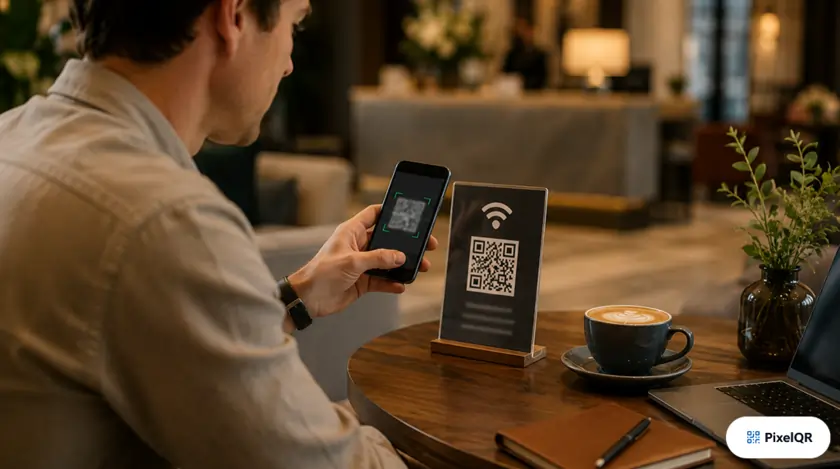
Stop spelling out complex WiFi passwords. WiFi QR codes reduce connection time by 95%—from an average of 47 seconds to under 3 seconds. Hotels using WiFi QR codes report 67% fewer front desk support calls, while restaurants see 89% higher guest WiFi adoption. This guide covers everything from basic setup to enterprise-grade security configurations.
WiFi QR Codes by the Numbers
Faster connection time
Guest WiFi adoption
Fewer support calls
Average connect time
How WiFi QR Codes Work
A WiFi QR code encodes your network credentials (SSID, password, and encryption type) in a standardized format that smartphones recognize automatically. When scanned, the device prompts users to join the network with a single tap—no manual entry required.
Step-by-Step: Create Your WiFi QR Code
1. Gather Your Network Information
Locate your network name (SSID) and password. On most routers, this information is printed on a sticker on the bottom or back of the device.
- SSID: Your network name (e.g., "MyHome_5G")
- Password: The WiFi password/passkey
- Encryption: WPA2, WPA3, or WEP (WPA2/WPA3 recommended)
2. Choose Security Settings
Select your encryption type. Modern networks should use WPA2 or WPA3 for security.
3. Generate Your QR Code
Use our WiFi QR code generator to create your code. Enter your network details and customize the design to match your branding.
Pro Tip: Hidden networks (with "Hidden SSID" enabled) work with QR codes too—just check the "Hidden Network" option when generating.
4. Test Before Deploying
Scan your QR code with multiple devices (iOS and Android) to ensure it works correctly before printing or displaying.
WiFi QR Code Applications by Industry
Hotels & Hospitality
Hotels implementing WiFi QR codes in rooms report 67% fewer front desk calls about WiFi issues. Place codes on key cards, bedside tables, and welcome packets.
- Room key card sleeves
- Nightstand tent cards
- TV channel info cards
- Welcome packet inserts
- Create separate guest VLAN
- Enable client isolation
- Set bandwidth limits per user
- Rotate passwords weekly
Restaurants & Cafes
Restaurants see 89% WiFi adoption rates when using QR codes versus password sharing. Combine with digital menus for a seamless experience.
- Table tents with menu QR
- Counter displays near register
- Receipts (printed at bottom)
- Window decals for takeout
- 2–4 hour session limits
- Separate from POS systems
- Content filtering enabled
- Captive portal for marketing
Corporate Offices
Enterprise environments benefit from QR codes in conference rooms and lobbies. IT teams report 82% fewer visitor WiFi support tickets.
- Conference room displays
- Visitor badge lanyards
- Reception desk signage
- Meeting room booking screens
- Isolated guest VLAN required
- No access to internal resources
- MAC address logging
- Daily rotating passwords
Home Networks
Home WiFi QR codes eliminate the awkward "What's your password?" moment. Perfect for parties, Airbnb rentals, and multi-generational homes.
- Framed art near entrance
- Fridge magnet in kitchen
- Guest room welcome card
- Inside cabinet door
- Consider separate guest network
- Keep main network private
- Enable MAC filtering if needed
- Update password after events
WiFi QR Code Security Best Practices
Security warning: A WiFi QR code contains your network password in plain text (not encrypted). Anyone with access to the QR code can extract the password. Always use a separate guest network for public QR codes and never share your main network credentials this way.
- Create a guest VLAN — isolate guest traffic from internal network
- Enable client isolation — prevent guests from seeing each other's devices
- Bandwidth throttling — limit per-user speeds to prevent abuse
- Session time limits — auto-disconnect after specified duration
- Rotate passwords regularly — weekly for high-traffic, monthly for low
- Use dynamic QR codes — update password without reprinting
- Strong passwords — 12+ characters, mixed case, numbers, symbols
- Log connections — monitor for unusual activity patterns
WiFi QR Code Design Tips
Best Practices
- Add "Scan for WiFi" text below the code
- Include a WiFi icon in the QR code center
- Minimum 2.5cm (1 inch) size for print
- High contrast colors for easy scanning
- Laminate printed codes to protect from wear
- Place at eye level in visible locations
Common Mistakes
- Using your primary network (not a guest network)
- Printing too small for quick scanning
- Low contrast or complex backgrounds
- Placing where lighting causes glare
- Forgetting to test before mass printing
- Not including clear call-to-action text
Hidden Networks vs. Visible Networks
| Feature | Visible Network | Hidden Network |
|---|---|---|
| Security Level | Standard | Marginal improvement* |
| QR Code Compatibility | Yes | Yes |
| User Experience | Seamless | May require extra steps |
| Device Compatibility | Universal | Some older devices may struggle |
| Recommended For | General guest access | Sensitive environments |
*Hidden networks only hide the SSID from broadcast; they don't provide encryption-level security improvements. Determined attackers can still detect hidden networks.
Frequently Asked Questions
Can WiFi QR codes work with hidden networks?
Yes! When generating your WiFi QR code, check the "Hidden Network" option. The QR code will include this flag, and compatible devices will connect even though the network doesn't broadcast its SSID.
Is it safe to share my WiFi password via QR code?
WiFi QR codes contain the password in plain text—anyone who scans can extract it. Always use a dedicated guest network for QR codes, keeping your main network separate and secure.
Do WiFi QR codes work on both iPhone and Android?
Yes, both iOS (11+) and Android (10+) support WiFi QR codes natively through the camera app. Older devices may need a QR scanner app but will still connect successfully.
How do I update the password without reprinting?
Use a dynamic QR code that redirects to a page showing current WiFi credentials. When you change the password, update the landing page—the printed QR code remains unchanged.
What's the best encryption type for WiFi QR codes?
Use WPA2 or WPA3 encryption. WPA3 is the newest standard with enhanced security features, but WPA2 has broader device compatibility. Never use WEP—it's easily compromised.
Can I add a logo to my WiFi QR code?
Yes! Most QR code generators support adding a logo in the center (up to 30% coverage). A WiFi icon or your business logo helps users understand what the code does at a glance.
Create Your WiFi QR Code Now
Generate a professional WiFi QR code in seconds. Perfect for businesses, events, or home use. Customize colors, add your logo, and start sharing WiFi the modern way.